Tips & Tricks (2010)

Creating Keynote presentations for iPad

Apple has posted this document which provides tips for creating a Keynote presentation on your Mac that will work well with the iPad’s version of Keynote. Among the tips are to use certain custom themes, certain fonts available on both platforms, and to choose the 1024×768 slide template. Happy presenting!

Posted by Mike Bass on April 25, 2010.


Access Alternative Time Machine Backups

Macworld recently posted this tidbit about accessing an alternative Time Machine backup, very useful for pulling files from an older drive..

Posted by Mike Bass on March 19, 2010.


MacBreak Weekly Podcast

If you are a Mac or iPhone user and interested in learning more, check out the excellent MacBreak Weekly podcast, available on iTunes. Each week, Leo Laporte hosts a panel discussion of Apple News, speculation, reviews and tips. Regular guests include Andy Ihnatko, Alex Lindsay, Scott Bourne, and Merlin Mann. Always entertaining and informative, the group end each podcast with their picks-of-the-week. I’ve been turned on to many, many new Mac and iPhone apps by the guys at MacBreak. Start listening now.

Posted by Mike Bass on March 15, 2010.


Twitter Apps for iPhone

I recently set my wife up with a new iPhone and had a chance to once again tryout all the various Twitter apps for the iPhone. Maybe it is just the stripped down interface, but I still prefer Tweetie.

Posted by Mike Bass on March 1, 2010.


A Few iPhone Tips

Predictive text can be annoying sometimes. You can turn it off for one word by simply capitalizing the first letter. Unless the word is the first letter of a sentence, the iPhone will assume your word is a proper noun and will not attempt to correct your spelling.

If you want to see where a web link goes without actually going there, simply tap and hold. An information bar will pop up. This works in both the Mail app and Safari.

You can’t create mail folders on the iPhone, but if you have an IMAP account (like MobileMe or GMail) you can create folders on the server. Head back over to your iPhone and you can access the folders.

In any application, Safari included, you can automatically scroll to the top of the page by tapping on the “top bar” which has the time and battery indicator.

When typing a URL, hold down the “.com” button and you’ll receive a pop-up with a few other domain suffixes: .net, .edu, and .org.

When your iPhone is locked (showing the “Slide to Unlock” screen), press the home button three times to bring up the iPod controls, all without unlocking your phone.

Posted by Mike Bass on August  4, 2009.


Missing Battery Menu options

After upgrading to 10.5.6, you may have noticed that the option to quickly change your MacBook’s energy settings to “Better Performance” and “Better Battery Life” disappeared. To make these changes you were required to visit the Energy Saver preference panel. What a pain! I can confirm that this was a “bug” with 10.5.6 that has been resolved with 10.5.7. After installing the latest Mac OS update, the battery options are back in all their original splendor.

Posted by Mike Bass on June 1, 2009.


Find Menu Commands

If you still haven’t upgraded to Leopard (a.k.a. Mac OS X 10.5), it’s time. Incompatibilities with Adobe CS3 and minor network glitches that plagued the 10.5.0 release have been squashed. Once you start using Leopard, you’ll find features like Spaces and Quicklook to be indispensable. This week’s tip, however, has to do with Leopard’s Help system. Did you forget where the Scripts command resides in Indesign? Quickly find any menu command in any app by clicking on Help and typing what you remember. Leopard’s Help system will display any matching menu items and point them out to you. Never search for a menu item again.

Posted by Mike Bass on September 1, 2008.
Should you Upgrade to Adobe CS5?

MacWorld puts that question to bed in this detailed report.

With CS5, Adobe shows once again that it keeps pace with, and even stays a step ahead, of our changing times. When thinking about upgrading to CS5, it’s reasonable to want to sprint, to take the shortest route to the fastest result at the lowest price. I wouldn’t blame you for thinking that way. But if you can, train for a marathon instead. Consider that the investment you make now will pay off in the future…

New MacBook Pros make it hard to say no

This week Apple released new 13”, 15”, and 17” MacBook Pros. The new laptops are simply stunning, offering high performance, long battery life, and good value. Apple is making it harder and harder to say no.

I’d convinced myself to get an iPad. Here’s my situation: I need high performance and portability. I like to drag my laptop all over the house and bring it on vacation for surfing and e-mail, but I also do some podcasting, music creation, and video editing. I own the last, fastest PowerBook G4 model Apple made in 2004, a great machine that has become long in the tooth and unsupported. My solution was an iPad for portability and everyday use, and an iMac for use in my home office. This would offer me an amazing portable solution plus a high-performance machine with a large screen for more demanding work. I could buy both machines for the price of a high-end Apple laptop.

These new MacBook Pros have me reconsidering. The new 13” MacBook pro has a battery life (10 hrs) that rivals the iPad and only gives up .6GHz and 250GB storage to the low-end iMac, both priced at $1200. A high quality 24” LCD monitor will run another $600 putting the pre-tax price tag of the MacBook Pro solution at $1800. The iMac plus iPad comes in at $1930.

There are still some things to consider. The iPad includes 3G connectivity ($30 addition per month). Plus, it’s a friggin’ iPad! The low-end iMac is faster than the .6GHz difference with the MacBook Pro indicates, but its screen is only 21.5”. The MacBook Pro is heavier than an iPad but would allow me to do video or music editing anywhere I please, offering true mobility. They may not be as cool as iPads, but the new MacBook Pros are superb machines and a great value.

ePub support on the iPad

My post about publishing on the iPad left out a HUGE fourth avenue for small publishers, which is e-books and the ePub format.

ePub is a digital book format based on XHTML. It includes XML, text, and images similar to an HTML page. When you export in Indesign to a digital book, it is exporting into the ePub format. Books in the ePub format allow the user to search, look-up the definition of words, change the size of text, and leave digital bookmarks.

With the iPad, Apple is also releasing iBooks, an e-reader app and bookstore. Amazon has also created a Kindle app for reading their e-books. Books created with the ePub standard can be sold through either establishment. In addition, iBooks will read any ePub-based book on the iPad, including books copied to the device or delivered via e-mail.

ePub and e-books are another way small publishers can get their content into the hands of readers, and it may be the easiest. I’ll post more about how to convert your existing InDesign files into ePub files in future posts.

What the iPad means to Publishing

Much has been written about big book and magazine publishers flocking to the iPad, but what about the little guys? When we talk about publishing on the iPad, we can mean one of three things: delivering print content as documents, either as PDFs or something like a Word or Powerpoint file, delivering content to the iPad via the web, or delivering content via full-fledged iPad apps.

The iPad and Print Content
Like the iPhone, the iPad can read Word documents, PDFs, text files, Excel, and Powerpoint files. The iPad can also read documents created in the iWorks counter-parts to Microsoft Office: Pages, Keynote, & Numbers. The most common way to get these files on and off your device is via e-mail, but you can also use Apple services like iWorks.com and MobileMe, or web services like Google Docs. Beginning with the iPad, you can also use iTunes 9.1 to transfer files to and from your computer. Right now the process is somewhat cumbersome, as Apple does not give you free reign to the file system. For example, the iPad disk does not show up in the Finder like a USB drive, allowing you to copy files on and off at will.

Many have tabbed the iPad as a content consumption device, but with the native iWorks apps, the iPad can also be used as content creation device as well, although it is limited. The iPad does not support the addition of fonts, so you’re stuck with 44 that are included. The iPad also doesn’t support any kind of printing, which means you’ll have to save your Pages, Keynote, or Numbers document as a PDF, e-mail it to a Mac or PC, and then print it – a real pain.

While I don’t see system-wide font support in the near future, I think printing will be solved soon. Apple could work with printer manufacturers to create iPad apps for printing. For example, an “HP Print” app could, in theory, allow the iPad to print to any HP printers on the current wi-fi network or via bluetooth pairing. Apple could create a printing app themselves with many of the standard printer drivers included. With this week’s announcement of a 4.0 update to the underlying iPhone operating system, Apple could add OS-level printing support to shared printers on Mac and PCs, or some other solution.

Websites customized for the iPad
Most printed content is already re-purposed into a website. The iPad has a browser and can view normal websites, though it lacks Flash. Websites can be bookmarked to the home screen, where they grab the site’s favicon and resemble a normal app. Web apps can be created by making a site that behaves like an iPad app, but is written in HTML, CSS, and Javascript. Your website can sense the iPad version of Safari, and switch to the iPad version of your site. John Gruber explains an Apple project called PastryKit here, that helps with this process.

Content delivered as an iPad app
This has been the most talked about publishing consequence of the iPad. Creating an iPad app amounts to repurposing your printed content or website into a self-contained program that can be downloaded to the iPad, exactly like an iPhone app. Your app can be completely free; it can be free but charge for “issues or episodes;” or you can create a separate app for each issue or episode. With an iPad app, you can make full use of the iPad hardware and user interface. Like CD-ROMs of the past, you must create a unique interface, but you can also take advantage of the fact that this is a mobile platform. If your content is a food guide, it could sort nearby reviews to the top based on the user’s current location. If your content is a text book, it can include 3D models that spin as the iPad is tilted. This is truly an opportunity to have fun with how your readers will interface with your content.

Creating a full-fledged iPad app, however, requires skills you probably do not already have in-house. You’ll need a Mac for development and a programmer with knowledge of the iPhone software development kit and the Objective-C programming language. You can get started here, or hire one of the many software developers already helping companies convert their content into iPhone and iPad apps.

The iPad will be a boon to communication and create new opportunities in publishing, but what it means to your pre-existing content is up to you.

iTunes Web Previews have SEO Mojo

In November 2009, Apple added webpage versions of every listing in the iTunes catalog, what Apple calls iTunes Web Previews. Before, links to items in the iTunes called a redirect that launched iTunes. Now, the pages can be viewed in your browser without a trip to iTunes. This excellent article talks about the effect of these web previews, namely, that iTunes pages now rank near the top of Google Searches for artists, songs, and iPhone apps.

iPad details emerge

Apple took 50,000 pre-orders for their new iPad tablet computer today. They also revealed several new details. First, the mute/vibrate button borrowed from the iPhone will serve a different purpose on the iPad: it will lock the screen orientation. As one of the main uses of the iPad will be reading, users laying on their sides need not be inconvenienced by the built-in accelerometer switching the orientation from portrait to landscape as they shuffle around.

The iPad will also feature several accessibility options, borrowed from Mac OS X. Users can zoom into any area of the screen up to 5X, reverse the display for greater readability, or have books and other text read to them aloud. Apple also revealed screenshots of a la carte 3G ordering, along with alerts that warn the user when they are approaching the lower plan’s 250MB cap.

Apple’s new product is shaping up to be more more than a “big iPod touch.” It’s eReader app, iBooks, looks like a winner. Plus, with full-sized apps like Keynote, Page, and Numbers (think Powerpoint, Indesign, and Excel) already available, the iPad could truly replace the laptop for many more users than people expect.

Sleep Cycle

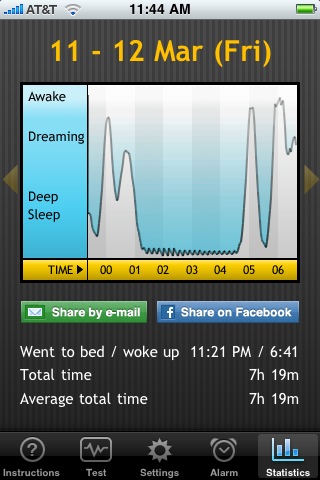
To use Sleep Cycle, you place an iPhone on your mattress while you sleep. This $0.99 app is able to monitor your body movements with the iPhone’s built-in accelerometer, thereby tracking your sleep cycles. It charts how much deep sleep you are receiving, when you are going in and out of R.E.M. sleep, and a true average of the sleep you’re achieving. By monitoring your cycle, this clever app can attempt to wake you up at your most natural wake state within 30 minutes of your alarm time.

When I first heard of Sleep Cycle, I got excited and immediately downloaded it before realizing that the app probably wouldn’t work in the bed I share with my wife. Wouldn’t it pick up her movements, rendering all collected data unusable? The app sat on my iPhone, never used, until I finally decided to try it this week. Sleep Cycle calibrates itself the first two nights, adjusting for the variables in your bed, mattress, and pillow. So far the results are good. After placing the iPhone on my side of the bed, the app seems to accurately track my specific cycles. If you have a king-sized bed or a tempurpedic mattress, Sleep Cycle’s results should be nearly perfect. Worried about overnight cellphone signals close to your head? Simply put your iPhone in airplane mode. Sleep Cycle’s biggest inconvenience is that because the app runs all night, you’ll have to plug your iPhone into the wall. If you can convince your wife to put up with a power cord coming out of your pillow, you can start enjoying a good night’s sleep.